You would never click a suspicious banking link, so treat every app download with the same caution. Sideloading APKs is common in India for early updates and region-specific apps, but it also invites fake clones and malware if you skip basic checks. Use this practical checklist to install Android apps safely, whether you download from Google Play or directly from an official website.
Why a secure app download checklist matters in 2025
- Attackers increasingly weaponize look-alike education, UPI, and utility apps to steal data and overlay phishing screens.
- Outside of Google Play, you do not get Play’s automated vetting, so your personal checks become critical.
- A few minutes of verification, source, hash, and signature permissions prevent days of cleanup.
1) Before you tap Download: verify the source
- Find the official homepage of the app, and check the exact domain, URL, and HTTPS lock. Avoid shortened links.
- Check the version, release date, file size, package name if published, and supported Android versions. If anything conflicts across pages, pause.
- Read recent release notes or changelog if available. Real developers publish them; copycat sites rarely do.
- Do not download “modded,” “premium unlocked,” or repacked variants. They often carry adware or remote access code.
- If you use the Sigma Study app, always prefer the publisher’s official website. Compare the version and supported Android versions listed on the official page before installing: official Sigma Study PW APK page.
2) File hygiene and integrity checks
These steps take under 2 minutes and catch most malicious tampering.
- Scan the APK with an online multi-engine scanner like VirusTotal. Upload the APK or paste the download URL, then review detections.
- Verify the SHA 256 hash if the publisher provides it. Compute locally and compare.
- Windows PowerShell:
Get-FileHash .\app.apk -Algorithm SHA256 - macOS:
shasum -a 256 app.apk - Linux:
sha256sum app.apk
- Windows PowerShell:
- Advanced, optional signature verification with Android tools. If you have Android Studio, use APK Analyzer
apksignerto check the signing certificate fingerprint and consistency across updates. See Google’s docs on app signing: Android App Signing.
3) Prepare your phone for a safe install
- Use a trusted network. Avoid public Wi-Fi during downloads and first launch.
- Keep Google Play Protect on. Open the Play Store, tap your profile, tap Play Protect, and turn on Scan apps with Play Protect. Learn more at Google Support: Google Play Protect.
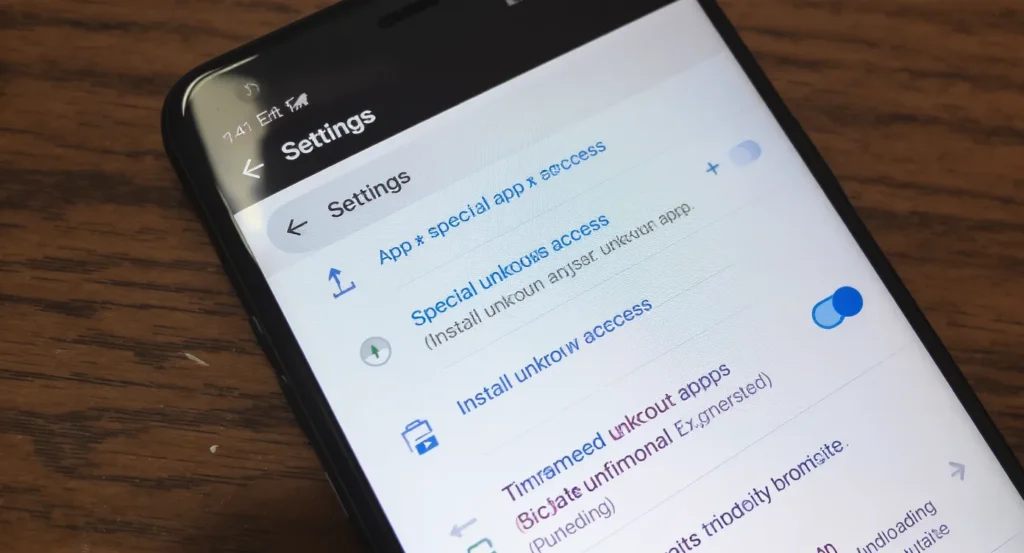
- Enable “Install unknown apps” only for the app you use to install, usually your browser or file manager. On Android 8 and above, go to Settings, Apps, Special app access, and Install unknown apps. Disable this right after installation.
- If updating an existing app, back up any in-app data if the app supports export or cloud sync.
4) Install carefully; watch permissions
- During installation and first launch, review every permission prompt. Grant only what the app genuinely needs to work.
- Be very cautious with these high-risk capabilities. Only grant if the feature explicitly needs it, and you fully trust the app.
- Accessibility Service
- Notification access
- Install unknown apps
- Draw over other apps
- Device admin, device management
- SMS, call logs, contacts, background location
- On Android 13 and above, you will be asked for notification permission. Decline if not needed; you can allow it later from Settings.
5) Post-install health check, first 24 hours
- Settings, Apps, App info, confirm version installed, and review Permissions and Data usage.
- Check the Privacy Dashboard for recent access to sensitive data like location, microphone, and camera.
- Watch battery and background data usage. Unexpected spikes can signal hidden activity.
- If Play Protect flags the app after installation, take the warning seriously. Uninstall and reevaluate the source.
6) Updating safely
- Use the same trusted source every time: the official website or Google Play.
- Confirm that the new APK is signed by the same developer key as your installed version. If you see “App not installed” with a signature conflict, uninstall the old clone first, then install the genuine build.
- If the update notes changed the minimum Android version or limited support for the newest Android release, follow the publisher guidance. Some apps may temporarily not support Android 15; check the official page for compatibility notes before updating.
7) Common errors and quick fixes
- App not installed: Often a signature mismatch or corrupted file. Re-download from the official link, and remove older conflicting variants.
- Parsing error: The APK may be incomplete or not compatible with your device’s CPU architecture or Android version.
- Crashes on first launch: Clear cache, then data. If it persists, confirm you downloaded the correct variant and that your OS meets the minimum requirement.
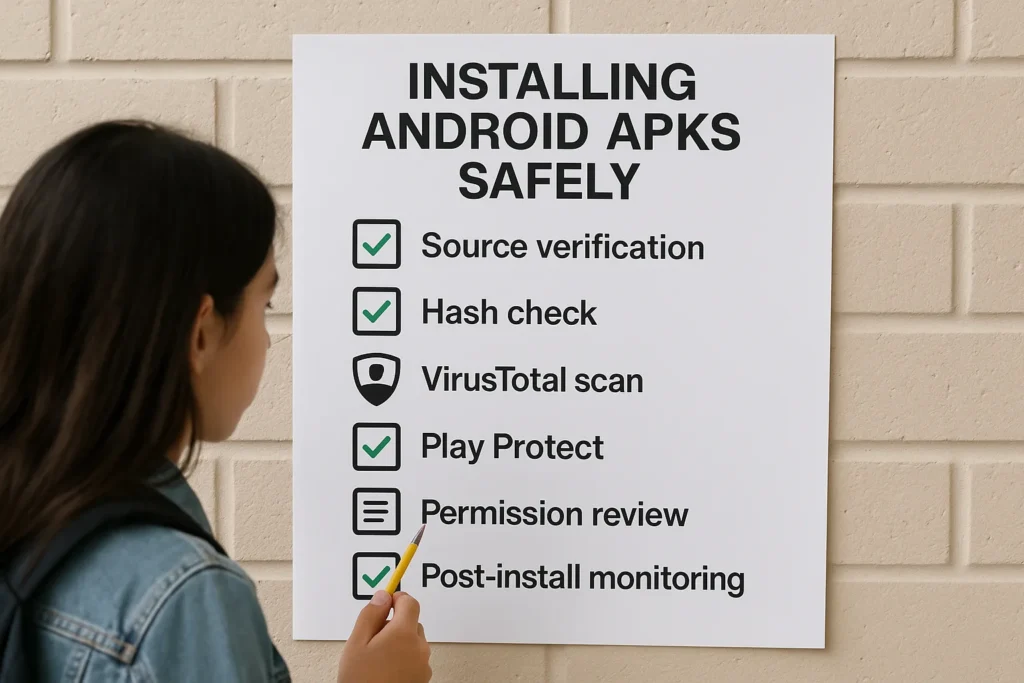
A concise, printable checklist
- Verify the official website domain and HTTPS.
- Cross-check the version, file size, release date, and supported Android versions.
- Avoid modded or repacked builds.
- Scan the APK on VirusTotal.
- Verify the SHA 256 hash if provided by the publisher.
- Turn on Play Protect.
- Temporarily allow “Install unknown apps” only for your installer app.
- Install, then immediately disable that permission.
- Review permissions on first launch; deny nonessential ones.
- Confirm app details in Settings, Apps, and App info.
- Monitor battery, data, and Privacy Dashboard for 24 hours.
- Keep the official source bookmarked for future updates.
- Delete the APK file after installation to avoid accidental reinstalls.
Quick reference: what to check and how
| Step | What to check | How to do it | Tools |
|---|---|---|---|
| Source | Official domain, HTTPS, release notes | Open the developer’s site from a trusted search result or typing the URL | Browser |
| File | Malware scan | Upload APK or URL to multi-engine scanner | VirusTotal |
| Integrity | SHA 256 hash match | Compute locally and compare with publisher value | PowerShell, Terminal |
| Signature | Same signing key across updates | Use APK Analyzer or `apksigner verify –print-certs` | Android Studio tools |
| Permissions | Only what is needed | Review prompts and App info, Permissions | Android Settings |
| After installation | Data, battery, privacy access | Privacy Dashboard, Battery, Data usage | Android Settings |
High-risk permission watchlist
| Capability | Why it is sensitive | Safe alternative |
|---|---|---|
| Accessibility Service | Can read screen content and tap on your behalf | Only grant to accessibility tools you fully trust |
| Draw over other apps | Enables phishing overlays on top of banking or OTP screens | Keep disabled unless a floating tool genuinely needs it |
| Device admin or device management | Can lock, wipe, or control device policies | Avoid unless your school or company manages your device |
| Notification access | Can read OTPs and private messages | Grant to notification tools you know and use; otherwise, keep off |
| SMS and call logs | Exposes OTPs and contacts | Prefer in-app OTP verification when possible |
| Background location | Tracks movement in the background | Grant “While in use” unless continuous tracking is required |
Special notes for Sigma Study users
- Always download from the official domain and compare the version and supported Android versions listed on the page before installing. Start here: official Sigma Study PW APK page.
- If your phone is on the newest Android version and you see a compatibility note on the page, wait for the next update or install it on a supported device. Do not use repacked or modded builds from third-party mirrors.
Frequently Asked Questions
Is it safe to install APKs from websites? Yes, if you verify the official site, scan the file, and check integrity and permissions. Avoid third-party mirrors that are not linked from the developer’s official site.
What is the safest place to download Android apps? Google Play is the safest for most users because of automated scanning and Play Protect. If you need to sideload, use the developer’s official website and follow the checklist.
How do I know if an APK has been tampered with? Compare the SHA 256 hash with the value published by the developer and verify the signing certificate with Android tools. If the signature or hash differs, do not install.
Why does Play Protect warn me about an APK I trust? Heuristics can be conservative. Reconfirm the source, scan on VirusTotal, and verify the hash and signature. If warnings persist, wait for the developer to address the flag.
What permissions should I never grant casually? Accessibility, Draw over other apps, device admin, notification access, SMS, call logs, and background location. Only grant when a feature clearly requires it and the app is fully trusted.
How do I update the Sigma Study app safely? Revisit the official Sigma Study PW APK page, confirm the version and compatibility, then install the update over your current app. Keep Play Protect on and remove the APK after installation.
Download the Sigma Study app the safe way
Ready to learn without distractions, ads, or paywalls? Get the official build from the source you trust. Visit the official Sigma Study PW APK page for the latest version, compatibility notes, and step-by-step installation instructions. Follow the checklist above for a clean, secure install every time.